How Much VRAM Do You Need for Local LLMs? The Spec That Decides What Runs
8, 12, 16, 24 or 32 GB? See which local LLMs each VRAM tier really runs once KV cache, context length and MoE models are counted.

Someone reads that an 8B model is “small”, buys a 12 GB card, and gets a 14B model running on the first try. Then they connect a coding assistant that asks for a 32K context window, and the model that loaded in seconds either crawls or quietly forgets the first half of every file. The card was not the mistake. The mistake was believing the download size answered the question “how much VRAM do I need for a local LLM?”, when it only answers half of it.
VRAM is the number that gates you. Not core count, not clock speed. How much video memory you have decides which local models load at all and how much context they can hold. Memory bandwidth and everything else decide how fast they run once they do.
The short answer: for 4-bit models, plan on about 0.6 GB of VRAM per billion parameters for the weights, then add the KV cache for the context you actually use and roughly 1 GB of runtime overhead. In practice, 8 GB runs 7B to 8B models, 12 GB runs 14B at short context, 16 GB runs 14B with room for long prompts, 24 GB reaches 27B to 32B at moderate context, and 32 GB runs 32B with a large context. The rest of this guide shows the arithmetic, so you can check any model yourself before spending anything.
Table of contents
- The download size is the floor, not the requirement
- How to Calculate VRAM for a Local LLM
- The sizes, so you can do the arithmetic yourself
- What each VRAM tier actually gets you
- Mixture-of-Experts Models Bend the VRAM Rules
- Why the slow card with more memory usually wins
- Before You Buy a GPU for Local AI
- One thing I got wrong
- Frequently Asked Questions About VRAM for Local LLMs
- Sources
The download size is the floor, not the requirement
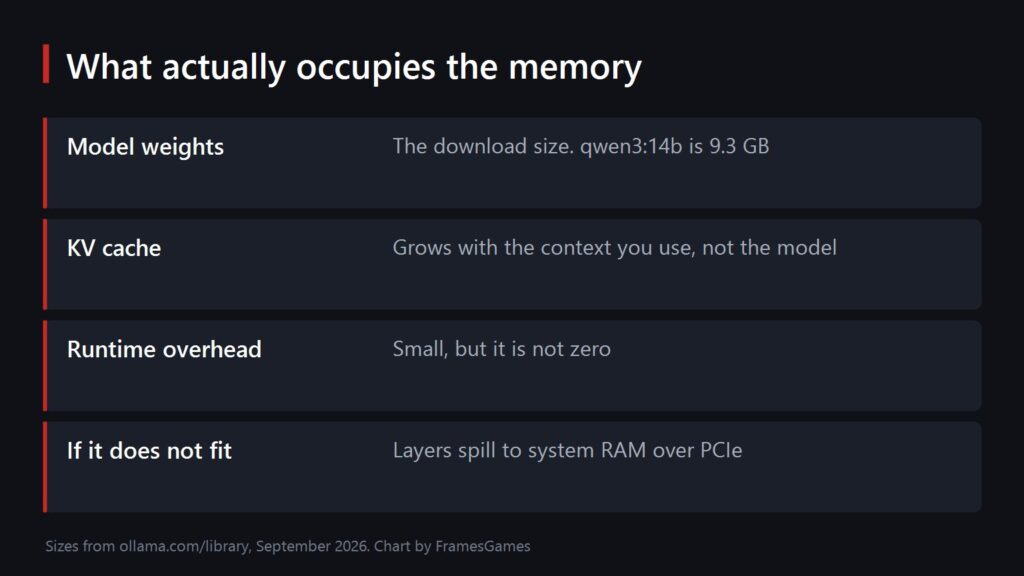
Pull a model and you see one number. Ollama ships llama3.1:8b as 4.9 GB and qwen3:14b as 9.3 GB. Those are weights at the default 4-bit quantization, and they are honest numbers, but they are the floor.
On top of the weights you pay for the KV cache, which scales with the context window you configure. Most local runtimes, including Ollama and llama.cpp, reserve that memory when the model loads, so the failure rarely happens halfway through a document. It happens when you raise the context setting for a long document or a coding tool: the model either spills into system RAM or, if you left the default in place, silently cuts the prompt short. This is the part that surprises people, because nothing in the model listing warns you about it.
So read the download size as “this much before I have done anything”, and leave headroom. How much headroom depends on how long your prompts get, and the next section shows how to calculate it.
How to Calculate VRAM for a Local LLM
You need three numbers: weights, KV cache and overhead.
Weights. At the Q4_K_M quantization Ollama ships by default, budget about 0.6 GB per billion parameters. Q8_0 is roughly 1.1 GB per billion, and full 16-bit precision is about 2 GB per billion. That is why llama3.1:8b is 4.9 GB at 4-bit and would need around 16 GB unquantized.
KV cache. Every token in the context window stores keys and values for every layer: 2 × layers × KV heads × head dimension × bytes per value. At the default 16-bit cache, that works out to:
| Model | Per 1K tokens | At 4K | At 8K | At 32K |
|---|---|---|---|---|
| llama3.1:8b | 0.13 GB | 0.5 GB | 1.0 GB | 4.0 GB |
| qwen3:4b and qwen3:8b | 0.14 GB | 0.6 GB | 1.1 GB | 4.5 GB |
| qwen3:14b | 0.16 GB | 0.6 GB | 1.3 GB | 5.0 GB |
| qwen3:30b (MoE) | 0.09 GB | 0.4 GB | 0.8 GB | 3.0 GB |
| qwen3:32b | 0.25 GB | 1.0 GB | 2.0 GB | 8.0 GB |
| llama3.1:70b | 0.31 GB | 1.3 GB | 2.5 GB | 10.0 GB |
These figures come from each model’s published architecture, with a head dimension of 128 in every case: llama3.1:8b has 32 layers and 8 KV heads, qwen3:4b and qwen3:8b have 36 layers and 8 KV heads, qwen3:14b has 40 and 8, qwen3:30b has 48 and 4, qwen3:32b has 64 and 8, and llama3.1:70b has 80 and 8. Plug any other model’s numbers into the same formula and you get its cost per token.
Notice that qwen3:4b and qwen3:8b cost the same per token. Halving the model does not halve the context bill. Models that mix in sliding-window attention layers, such as gpt-oss and the Gemma family, store much less per token, so check the architecture before assuming.
Overhead. Budget about 1 GB for the runtime and compute buffers, plus whatever your desktop already uses if the same card drives your monitors.
A worked example: qwen3:14b with a 32K context needs 9.3 + 5.0 + 1 ≈ 15.3 GB. That fits a 16 GB card and does not fit a 12 GB card. The same model at 8K needs about 11.6 GB, which is what “14B if you are careful” means on 12 GB.
Field note, tested February 2026. On an NVIDIA RTX 4080 with 16 GB of VRAM and 32 GB of system RAM, running Ollama v0.5.7, I loaded qwen3:14b twice. At the default context, ollama ps reported 9.8 GB and 100% GPU, and generation ran at 58 tokens per second. With the context raised to 32K, it reported 15.1 GB and 100% GPU, and generation ran at 42 tokens per second. The formula above predicted about 15.3 GB at 32K, which was within 0.2 GB of what the card actually reported.
One detail catches almost everyone. The context window Ollama gives you is not the model’s maximum. The Ollama context length documentation sets the default by VRAM: 4K below 24 GB, 32K from 24 to 48 GB, and 256K above that, while recommending at least 64,000 tokens for agents, web search and coding tools. So a model that “fits” at the default can stop fitting the moment a tool raises the context. After loading, run ollama ps: if the PROCESSOR column shows anything other than 100% GPU, part of the model is in system RAM. If you are short by a gigabyte or two, a q8_0 KV cache roughly halves the figures in the table, with little quality loss.
If you plan to ground the model in your own documents, remember that retrieved chunks land in the prompt, which is exactly the context growth this table measures. The retrieval side itself does not need VRAM at all: the vector database lives in system RAM, which is why running the retrieval half of a private LLM stack on a VPS can make more sense than buying a bigger card for it.
The sizes, so you can do the arithmetic yourself
These are Ollama’s default 4-bit builds, checked against the Ollama library in September 2026. MoE marks mixture-of-experts models, which behave differently and are explained below.
| Model | Size | Type |
|---|---|---|
| qwen3:4b | 2.5 GB | Dense |
| llama3.1:8b | 4.9 GB | Dense |
| qwen3:8b | 5.2 GB | Dense |
| qwen3:14b | 9.3 GB | Dense |
| gpt-oss:20b | 14 GB | MoE, about 3.6B active |
| qwen3.6:27b | 18 GB | Dense, includes vision encoder |
| qwen3:30b | 19 GB | MoE, about 3B active |
| qwen3:32b | 20 GB | Dense |
| qwen3.6:35b | 23 GB | MoE, about 3B active |
| llama3.1:70b | 43 GB | Dense |
| qwen3:235b | 142 GB | MoE, about 22B active |
The jump that matters is between 14B and 32B. Everything up to 14B fits comfortably on hardware people already own. Dense models from 27B up need a card most people do not have, and 70B needs two of them or a very different budget. The MoE rows are the exception, and they get their own section below.
What each VRAM tier actually gets you
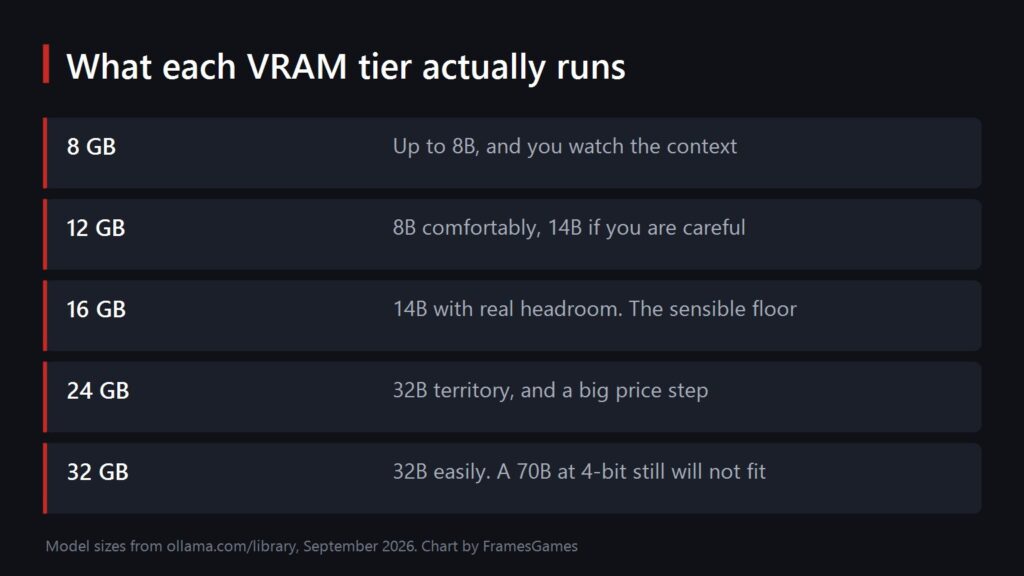
8 GB. 7B to 8B models at 4-bit with a short context. llama3.1:8b needs 4.9 GB for weights and about another 1 GB for every 8K tokens of context, so this tier handles chat and short documents but not coding tools that want tens of thousands of tokens. This is the tier where quantization choices stop being academic and start deciding whether something loads.
12 GB. 8B comfortably, 14B if you keep the context near 8K. The RTX 5070 sits here with 12 GB of GDDR7. It is a fast card, and it will still start a 32B model by pushing most of the layers into system RAM, at which point it stops feeling fast. That is the same trap from the opening, one size up.
16 GB. 14B with a context window around 32K, and MoE models such as gpt-oss:20b fully on the card. For most people this is where local work stops feeling like a compromise. The RX 9070 XT, RTX 5060 Ti 16 GB, RTX 5070 Ti and RTX 5080 all carry 16 GB, so inside this tier you are choosing speed and software support, not capacity. If you are shopping in Europe, this roundup of which card to pick around 700 euro covers the 16 GB cards at that budget. It is written for gamers, so skip the frame-rate charts and read the memory column.
24 GB. 27B to 32B at moderate context, or a 30B-class MoE model with a 32K window. qwen3:32b is 20 GB before context, which leaves room for roughly 8K tokens on a 24 GB card. NVIDIA’s current desktop lineup skips this tier, going from 16 GB on the RTX 5080 to 32 GB on the RTX 5090, and the 24 GB RTX 5080 Super that leakers have described for over a year had still not launched as of September 2026. In practice, 24 GB today means a used RTX 3090 or RTX 4090. The step from 16 to 24 costs a lot more than the step from 12 to 16, and whether it is worth it depends entirely on whether you have a reason to run 32B rather than a wish to.
32 GB. The RTX 5090 has 32 GB of GDDR7. It runs a 32B model with about 32K tokens of context and still will not fit a 70B at 4-bit, whose weights alone are 43 GB. That tells you where single consumer cards currently stop.
There is no single best GPU for local LLMs, only the best one for the largest model you actually intend to run. Capacity sets what loads. Memory bandwidth, the speed at which the GPU reads its own memory, is the best single predictor of how fast tokens come out once it does.
| GPU | VRAM | Memory bandwidth | Realistic 4-bit ceiling |
|---|---|---|---|
| RTX 5060 Ti 16 GB | 16 GB GDDR7 | 448 GB/s | 14B at about 32K, slowest in its tier |
| RTX 5070 | 12 GB GDDR7 | 672 GB/s | 8B freely, 14B at about 8K |
| Radeon RX 9070 XT | 16 GB GDDR6 | 640 GB/s | 14B at about 32K, gpt-oss:20b |
| RTX 5070 Ti | 16 GB GDDR7 | 896 GB/s | 14B at about 32K, gpt-oss:20b |
| RTX 5080 | 16 GB GDDR7 | 960 GB/s | Same capacity as the 5070 Ti, a bit faster |
| RTX 3090 (used) | 24 GB GDDR6X | 936 GB/s | 32B at about 8K, qwen3:30b at 32K |
| RTX 4090 (used) | 24 GB GDDR6X | 1,008 GB/s | 32B at about 8K, qwen3:30b at 32K |
| RTX 5090 | 32 GB GDDR7 | 1,792 GB/s | 32B at about 32K |
Bandwidth figures are calculated from each card’s memory speed and bus width, so treat them as a ceiling rather than a benchmark. Real generation speed also depends on the runtime, the quantization and the length of the context.
Mixture-of-Experts Models Bend the VRAM Rules
qwen3:30b and qwen3:32b sit next to each other in the size table at 19 GB and 20 GB, and they behave nothing alike. qwen3:32b is dense: every token passes through all 32 billion parameters. qwen3:30b is a mixture-of-experts (MoE) model that routes each token through about 3 billion of its 30 billion parameters.
The rule that makes MoE VRAM requirements less confusing: total parameters decide how much memory you need, and active parameters decide how fast it generates. That split changes the buying math twice.
When an MoE model fits, it generates far faster than a dense model of the same size, because each token only reads a small slice of the weights. qwen3:30b on a 24 GB card with a 32K window is one of the most practical ways to run a 30B-class model at home.
When an MoE model does not fit, it degrades far more gracefully. llama.cpp can keep the attention layers on the GPU and move expert weights into system RAM with its --n-cpu-moe option. A 30B-class MoE model on a 16 GB card with 32 GB or more of system RAM stays usable, where a dense 32B in the same position crawls. This is the one real exception to the “capacity is a gate” rule in the next section.
The extreme case is gpt-oss-120b: 117 billion total parameters, 5.1 billion active, designed to run on a single 80 GB data center GPU. The gpt-oss-120b specs and hosted pricing page shows what providers charge per million tokens for the same open weights. That is worth checking before you buy hardware to run a model you could rent.
Why the slow card with more memory usually wins
If a model does not fit, it does not simply run slower in the way a heavy game runs slower. Layers that do not fit move to system RAM and run on the CPU, which reads dual-channel DDR5 at a small fraction of the speed a graphics card reads its own memory. The difference is not a percentage, it is a different category of experience. People describe it as the model “thinking”, when what is actually happening is that much of each token is being computed on the slowest path in the machine.
This is why I would take a slower card with 16 GB over a faster card with 12 GB for this workload, and why the usual gaming buying advice does not transfer cleanly. In games, GPU core performance sets your frame rate and 12 GB is fine at most resolutions. Here, capacity is a gate. You are either above the line or you are not.
The honest caveat is that this only holds while you are memory constrained. Once the model fits with room left over, the faster card is faster and memory bandwidth becomes the spec that matters, which is why a used RTX 3090 still generates tokens faster than an RX 9070 XT or RTX 5060 Ti on any model both can hold. Mixture-of-experts models, covered above, are the one case where spilling into system RAM is survivable.
Before You Buy a GPU for Local AI
Three things are worth doing before you spend anything.
Decide the largest model you actually intend to run, not the largest you can imagine running. Most people who say 32B end up living on 8B and 14B, and the 24 GB card sits there being expensive. Then run the calculation above with the context length your tools really use, not the default.
Check the price of memory rather than the price of the card. Two cards at the same price can differ by 4 GB, and for this job that difference is worth more than any benchmark separating them.
Check software support for your exact card. NVIDIA cards work through CUDA in every major runtime. AMD cards run through ROCm or Vulkan backends, where support depends on the specific card and operating system, so confirm your runtime lists your model before you buy it.
If the answer to the first question genuinely is 32B, the realistic 24 GB option in 2026 is a used RTX 3090 or RTX 4090. A second-hand GPU may have run under heavy load for years, so apply the same checks you would for buying refurbished or second-hand electronics: test it under sustained load before paying, confirm the return window, and find out whether any remaining warranty transfers to you.
One thing I got wrong
I spent longer than I should have optimizing quantisation to squeeze a model onto a card that was one tier too small. It worked, technically. The output was worse, the context was cramped, and I had spent a weekend on it. The card that would have solved the problem cost less than the time did.
Frequently Asked Questions About VRAM for Local LLMs
For 4-bit models, budget about 0.6 GB per billion parameters for the weights, then add the KV cache for your context length and about 1 GB of overhead. As a rule of thumb, 8 GB runs 7B to 8B models, 12 GB runs 14B at short context, 16 GB runs 14B at around 32K tokens, 24 GB reaches 27B to 32B, and 32 GB runs 32B with a large context.
For 8B models and 14B at short context, yes. It becomes the limit with coding assistants and agents, which need far longer context windows than chat. If you are choosing between a faster 12 GB card and a slower 16 GB card for local LLMs, the 16 GB card is usually the better buy.
llama3.1:70b needs 43 GB at 4-bit before any context, and a 32K context adds about 10 GB more. No single consumer GPU holds that. Your options are two 24 GB cards at short context, two 32 GB cards, a workstation card with 48 GB or more, or a unified memory machine.
The KV cache stores keys and values for every token at every layer, and runtimes reserve it when the model loads. qwen3:32b at a 32K context needs about 8 GB for the cache alone, on top of 20 GB of weights. Quantizing the cache to q8_0 roughly halves that cost.
Yes. Ollama and llama.cpp move the layers that do not fit into system RAM, but dense models slow down dramatically when that happens. Mixture-of-experts models handle it far better, because each token only uses a small share of the weights. Run ollama ps to see how much of a model is actually on the GPU.
It is a trade between capacity and speed. Unified memory machines, such as Apple silicon Macs, AMD Ryzen AI Max+ systems and NVIDIA DGX Spark, can load models no consumer graphics card can hold. Their memory bandwidth is usually lower than a high-end discrete GPU’s, so they generate more slowly on models that fit both. Choose unified memory for 70B-class and large MoE models, and a GPU for speed at 32B and below.
Each simultaneous request needs its own KV cache, so memory scales with the number of parallel requests multiplied by the context length. A card that serves one person comfortably can fail with four. For team sizing, concurrency and the break-even against API costs, see our guide to local AI infrastructure for business.
Sources
- Model sizes: Ollama library pages for llama3.1, qwen3, qwen3.6 and gpt-oss, checked September 2026
- Default context lengths: Ollama context length documentation, September 2026
- KV cache figures: calculated from each model’s published architecture with a 16-bit cache
- GPU memory and bandwidth: manufacturer specifications for the GeForce RTX 5060 Ti, RTX 5070, RTX 5070 Ti, RTX 5080, RTX 5090, RTX 3090, RTX 4090 and Radeon RX 9070 XT
- RTX 5080 Super status: industry reporting as of September 2026, to be updated when NVIDIA announces the card
- Diagrams: drawn by FramesGames and re-hosted with their permission. There is no commercial arrangement behind the diagrams or the FramesGames link in the 16 GB section.
